
This is an old revision of the document!
Table of Contents
Connecting to the black and white printer
The black and white printer is a Dell 5330dn laserprinter. It is available for the use of all IBG faculty, students, employees, and guests.
In brief:
- Download the drivers.
- Extract the drivers.
- Point your computer to the printer using either the Windows domain member or the HTTP/CUPS method.
Printing from a Windows domain member
This is the easiest method for attaching to the IBG printers. It is recommended for all desktop Windows computers. However, this only works if the computer being used is a member of the IBG Windows domain. Your computer is a member of the IBG Windows domain if the following are true:
- Your computer is on-campus.
- You press
ctrl-alt-deleteand see a login box similar to (it will look different on Vista):
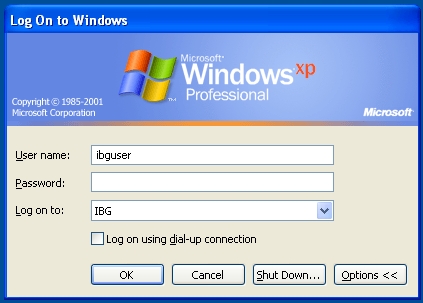
If your computer is not a member of the IBG Windows domain then follow the instructions under HTTP/CUPS.
Connection instructions
- Open a Windows Explorer (not Internet Explorer) window. This can be done by opening
My Computer. - Enter \\delta\printers and faxes on Windows XP or \\delta\ on Windows Vista or 7 into the address bar.
- Right click on the
M5330dn-PS3icon and selectConnectand thenYes. Windows Vista and 7 may ask you about accepting the drivers provided by the server, and for privilege elevation to allow installation of the drivers. It is safe to download and install the drivers from the IBG server.
Drivers
Drivers for the printer are check for newer ones available from Dell.
- Select your operating system from the
Operating Systemdrop down. - Download the
Dell - Driverentry.
Alternatively, the driver can be directly downloaded from the following links:
It is possible that Dell has released newer drivers than the ones directly linked here, so if you experience problems with the direct linked drivers, be sure to available from Dell.
Double click on the file which was downloaded. That will by default extract the drivers to c:\Dell\Drivers. This will then start the Dell 5330dn Mono Laser Printer installation application. Click Cancel and confirm to exit the installation application. Once the drivers are extracted, move on to the HTTP/CUPS section.
Printing using HTTP/CUPS
This method of connecting to the printer works from Mac, Windows, and Linux computers. It is the recommended method to use from Windows computers which are not members of the IBG domain.
Windows XP
- First download the drivers and extract them.
- Go to the
Printers and Faxescontrol panel. - Select
Add a printerwhich will start the Add Printer Wizard. - Click
Next. - Select
A network printer… - Click
Next. - Select
Connect to a printer on the Internet… - Enter http://delta.colorado.edu:631/printers/Dell-5330dn into the
URLfield. - Click
Next. - Select the
Have Diskoption. - Click the
Browsebutton. - Browse to
C:\dell\drivers\R241922\Printer\PS\English\WINXP_2000_VISTA_32and then clickOpen. (The exact directory you browse to may be slightly different.) - Click
OK. - Pick
YesorNoto set this as the default printer and clickNext.
Macintosh
- Double click on the driver which was downloaded from Dell
- Then double click on the
D5330dn Installer OSX.zipfile, and run the installer which is extracted. - The driver for the printer has been installed, but the printer itself must be installed.
- Click on the apple menu and select
System Preferences. - Start the
Print & Faxtool. - Click the
+button. - Click the
IPbutton at the top. - Set the
Protocolselector toInternet Printing Protocol - IPP. - Enter delta.colorado.edu into the Address field.
- Enter printers/Dell-5330dn into the Queue field.
- Update the
Namefield to something descriptive, such asIBG B&W printer - Set the
Print Usingselector toAdditional Drivers. - Select the Dell 5330dn driver (enter
Dellinto the search bar at the top of the window) - Click the
Addbutton.